Ableton Note 2.1 just got a serious upgrade: warp markers. Taylor Fiore, a.k.a. WhosTaylor, dives straight into audio manhandling on your iPad, showing how to bend sound to your will. Expect sharp tips, a no-fluff delivery, and a few sly tricks for getting your samples locked, loaded, and in time. If you think mobile warping can’t hang with the big DAWs, Taylor’s about to prove you wrong. Watch out—your touchscreen just became a rave bunker.
29. September 2026
SPARKY
Taylor Fiore Gets Twisted: Warping Audio Like a Pro in Ableton Note 2.1
Ableton Move, Ableton Note, AIAIAI TMA-2 Studio Wireless Headphones, TX-6 Mixer
Warp Markers Crash the Party
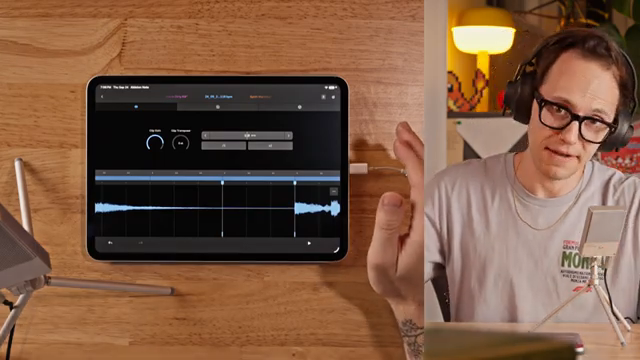
Taylor Fiore wastes no time getting to the good stuff: audio warping in Ableton Note 2.1 just got a proper overhaul. Warp markers are now in the game, letting you pin, drag, and slam audio into place like you’re wrestling unruly drum loops into submission. This isn’t your granddad’s time-stretching—this is hands-on, touchscreen warping that puts the power of the DAW on your phone or tablet.
It’s a big deal for anyone who ever wanted to sync weird samples or fix sloppy takes on the go. Taylor sets the scene and lets us know we’re working with Note 2.1—so if your app’s missing these features, time to update unless you enjoy suffering.
Mark It Up: Placing and Dragging Like a Boss
Taylor shows the real-world process: bouncing MIDI to audio in Note, then zooming in to expose where things aren’t lining up. The trick is all about marker placement—drop a marker where you need, then drag it until your audio locks to the grid. It’s tactile, visual, and brutally effective for those ‘my sample’s got a limp’ moments.
Don’t be shy with the zoom. Taylor makes it clear: the deeper you go, the more precise you can get. You can use a single marker for broad moves or pepper your audio with multiple markers if you’re feeling surgical. Tap, drag, and suddenly you’re no longer at the mercy of a dodgy loop. And if things go sideways? Just remove a marker and get back to clean territory—undo is your best mate.
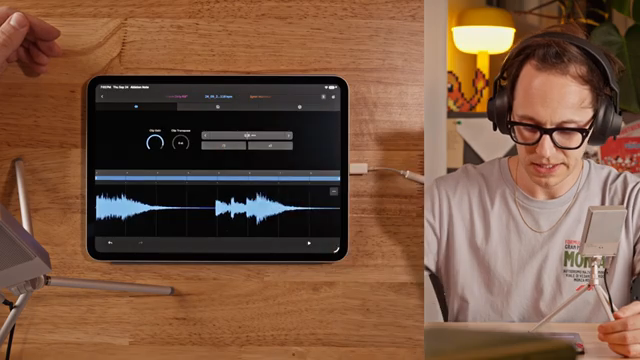
"A little engineering production tip here, if you're turning the gain up and you don't see it start to clip, which would be starting to look like a box or anything like that, it's safe, it's okay."
© Screenshot/Quote: Taylorfiore (YouTube)
More Markers, Less Mayhem
"So sometimes more markers is better markers, depending on how you're doing it."
© Screenshot/Quote: Taylorfiore (YouTube)
Here’s the hack: sometimes, more markers mean less audio carnage when you start stretching things around. Taylor breaks down how strategic placement stops one edit from wrecking the rest of your clip. Add a marker before and after the bit you want to warp, and keep the chaos contained. Simple, but effective—no need to turn every edit into a toaster-fight.
Complex Warp Mode: The Secret Sauce
Now for the nerdy bit. Ableton Note handles all this warping wizardry using Complex mode—the same clever algorithm you find in the full-fat Ableton Live. Taylor points out you’re stuck with Complex in Note for now, but frankly, it’s the one most of us reach for unless we’re after something seriously surgical or creative.
Complex mode keeps things sounding natural, until you really start mangling—then, yeah, you’ll get those weird time-stretch artefacts. If you want to hear exactly how weird things get when you push the algorithm too far, just watch the video. Trust me, you’ll get a taste of digital mayhem that text can’t deliver.
"Complex is the, as it sounds, complex algorithm that's making sure that the sounds sound as natural as possible."
© Screenshot/Quote: Taylorfiore (YouTube)
See It, Hear It, Warp It Yourself
Honestly, the magic’s in the moves and the sounds. Taylor’s walkthrough is packed with hands-on dragging, marker tweaks, and audio that bends in real time. Reading about it? Good for your brain. Watching it happen? That’s how you’ll know if Note’s warping is ready for your next street weapon set. Don’t sleep—watch the video, get your hands dirty, and make those loops behave.
This article is also available in German. Read it here: https://synthmagazin.at/taylor-fiore-dreht-auf-audio-warping-wie-ein-profi-in-ableton-note-2-1/
More articles about these products:
 Taylor Fiore Pits Eurorack Rings Against Max for Live: Who Rings Supreme?
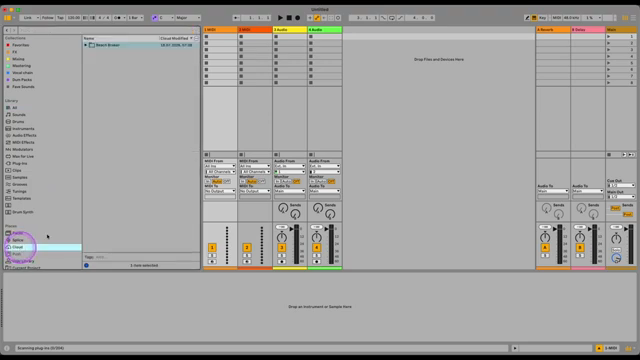 LNA Does Audio Stuff: Making Beats on the Cheap with Ableton Note—Beach Edition
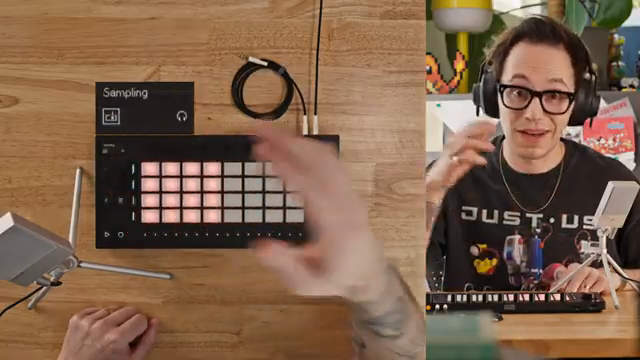 Taylor Fiore Goes Deep: Ableton Move 2.1 Update – Time Twists, Mono Mayhem & Workflow Hacks
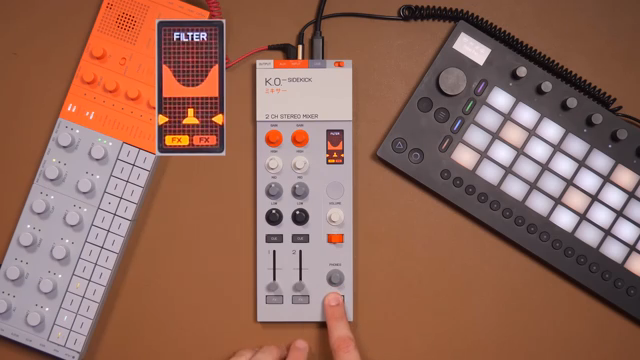 TAETRO’s Sidekick Obsession: Teenage Engineering Finds the Missing Link
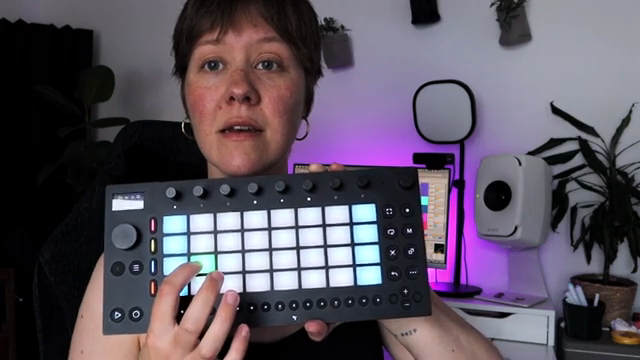 LNA Does Audio Stuff: Shaping Beach Ghosts with Ableton Move
 AudioPilz Unleashes Hacked Mayhem: Classic Synths Invade Ableton Move
 TAETRO Throws Down: Ableton Move vs MPC Sample – Which Groovebox Wins the Street Fight?
 L.Dre Throws Down: Which Portable Sampler Actually Slaps in 2026?
 TAETRO’s Streetwise Hack: Ableton Note + Synido TempoKey W25 vs. Ableton Move
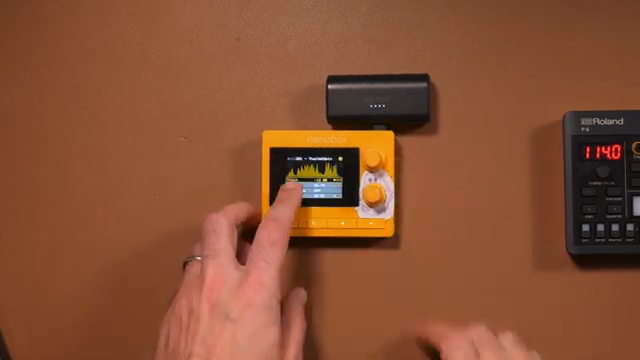 TAETRO Unleashes the 1010music Bento: Portable Groovebox, Heavyweight Moves
 TAETRO’s Launchpad Deep-Dive: More Than Just Blinky Lights
 Tefty Rocks the Beats with AIAIAI’s TMA-2 Studio Wireless
Watch on YouTube:
Latest articles
Watch on YouTube:
Visit the channel:
https://www.youtube.com/TaylorFiore
https://www.youtube.com/TaylorFiore
Links from TaylorFiore:
Website: https://whostaylor.com/
Lessons: https://whostaylor.com/lessons
Instagram: https://www.instagram.com/whostaylor/
Threads: https://www.threads.net/@whostaylor
Sponsored links:
If you purchase via these links, we may earn a small commission – at no extra cost to you. The link opens an Amazon keyword search, and results may vary depending on availability.
Ableton Move
🔗 Check price on Amazon
🔗 Check price on Amazon
Ableton Note
🔗 Check price on Amazon
🔗 Check price on Amazon
AIAIAI TMA-2 Studio Wireless Headphones
🔗 Check price on Amazon
🔗 Check price on Amazon
TX-6 Mixer
🔗 Check price on Amazon
🔗 Check price on Amazon