Let’s face it: most Logic Pro users sleepwalk past the Region Inspector, missing out on a goldmine of power moves. Chris Sangster, the meticulous mind behind Sangster Sounds, drops the fluff and gets surgical with Logic’s most overlooked panel. If you’re tired of repetitive grid-lock and clunky edits, this video is your ticket to smarter, dirtier, and far slicker sessions. Chris doesn’t just break down features – he exposes workflow hacks that’ll make your next project punch harder and run cleaner. Don’t blink, or you’ll miss tricks that’ll turn your DAW routine into a full-blown rave bunker.
15. June 2026
SPARKY
Chris Sangster’s Region Inspector Rave: Logic Pro’s Best-Kept Workflow Weapon
Region Inspector: The Secret Sauce No One Uses
Chris Sangster isn’t here to waste anyone’s time – he dives straight into the Region Inspector, the Logic Pro feature everyone overlooks but shouldn’t. It sits quietly in the Inspector section, waiting to be unleashed, and Chris makes it clear: this isn’t just another settings panel. It’s where the real power users get their hands dirty.
The Region Inspector lets you surgically tweak every region in your session, from audio to MIDI. Instead of fumbling through menus, you’re one click away from muting, looping, and dialling in specifics. Sangster’s approach is all about efficiency – and he’s not shy about calling out the rookie mistakes that happen when you ignore this beast. If you’ve ever wondered why your regions are looping off into infinity, this is the part you probably missed.
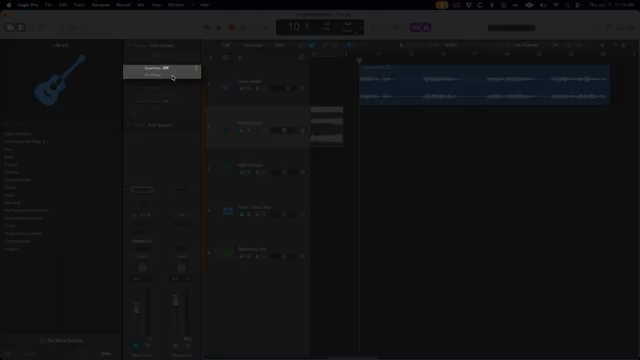
"The Region Inspector is where changes can be made to the settings of individual regions in the timeline."
© Screenshot/Quote: Sangstersounds (YouTube)
Timing That Slaps: Quantize and Groove in the Inspector
"This is how we can use flex time to quickly quantize an audio region."
© Screenshot/Quote: Sangstersounds (YouTube)
The Region Inspector isn’t just for fiddling – it’s a timing machine. Chris breaks down quantizing MIDI and audio regions, showing how you can snap performances to the grid without sucking the life out of them. He digs into swing, triplets, tuplets, and even those groovy custom templates that’ll save your hi-hats from sounding like a robot with a hangover.
Groove templates get special love: steal the feel from any region and slap it anywhere you want. Sangster makes it look effortless, but the point is clear – this isn’t about blindly hitting ‘quantize.’ It’s about locking in the vibe, whether you want rigid techno or loose funk. And for anyone still using the old Groove Track? Chris shows why templates are the real street weapon.
Fade, Flip, and Warp: Creative FX with No Plugins Needed
Forget dragging in third-party plugins for every effect – the Region Inspector has you covered for fades, speed changes, and reverse action. Chris lays out how to batch fade, shape curves, and even pull off those dramatic slow-downs or tape-style speed-ups with just a tick box or two. No need for ten automation lanes when you’ve got this much control at your fingertips.
That reverse checkbox? It’s instant gratification, flipping audio on its head and delivering that classic backmasked vibe with zero faff. Sangster’s quick to note the quirks: certain flex and follow setups block reverse, so you’ll need to bounce in place before the magic happens. It’s a section packed with hacks that’ll let you get weird fast – ideal for electronic heads who want more flavour with less menu-diving.
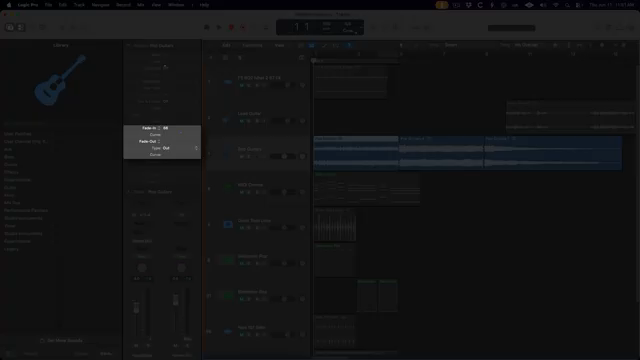
"The first two relate to fade ins. To add a fade in to a selected audio region or multiple audio regions click and drag next to fade in or double click and type."
© Screenshot/Quote: Sangstersounds (YouTube)
MIDI Micromanagement: Advanced Tools for Real Feel
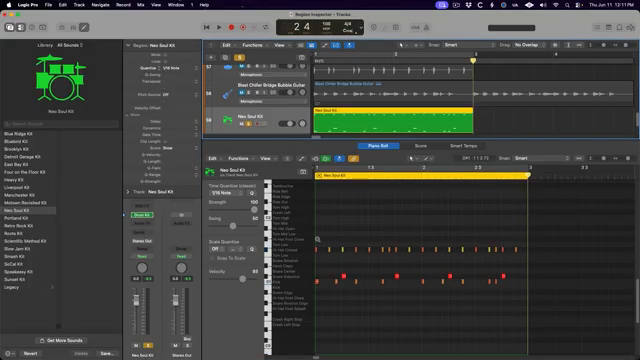
"But that is not all the region inspector is capable of. If we click on a midi region instead of an audio region we get a slightly different group of available settings."
© Screenshot/Quote: Sangstersounds (YouTube)
Moving to MIDI, Chris shows off the advanced controls hidden in the Region Inspector. Dynamics, gate time, and those ultra-flexible quantize tweaks give you microscopic control over how your parts hit. Want to push velocity, clamp dynamics, or force legato across a whole phrase? It’s all here, no need to drown in the piano roll.
The best bit: you can push Logic to humanise or roboticise your MIDI to taste. From fixed velocities to rolling flams, it’s a toolkit for anyone sick of flat, lifeless sequences. Just don’t expect visual feedback for every knob – some changes are sonic, not seen. As always, Sangster keeps it real: sometimes the quickest fix is still shifting notes by hand, but these Inspector tricks get you 90% there in seconds.
Workflow Gamechanger: Watch and Learn, Then Go Deeper
If this all sounds like a lot, it is – and Chris knows it. The Region Inspector isn’t just another menu; it’s the beating heart of smarter sessions. Beginners get a guided tour, and intermediates will still pick up workflow gems that leave the manual in the dust. But honestly, the only way to see the real juice is to watch Chris in action. His breakdowns are crisp, and his workflow is tighter than most producers’ sidechains. Don’t just read – hit play, and let the Inspector level up your next Logic session.
This article is also available in German. Read it here: https://synthmagazin.at/chris-sangsters-region-inspector-rave-logic-pros-bestgehuetete-workflow-waffe/
More articles about these products:
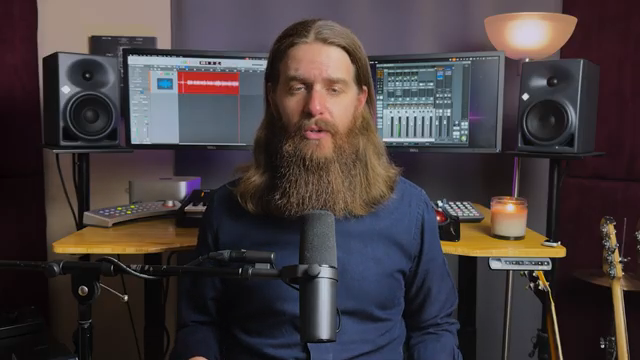 SangsterSounds Digs Deep: Logic Pro’s Track Inspector Unleashed
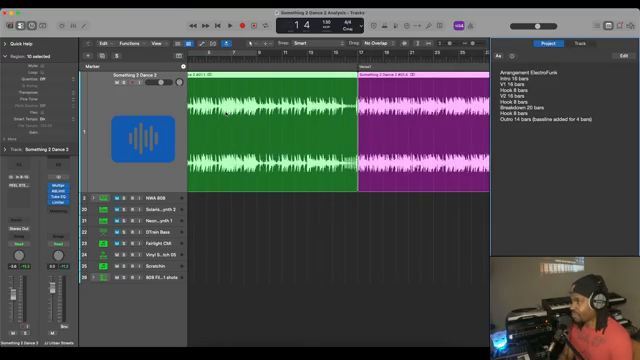 Verysickbeats Digs Into NWA’s Electro Funk Oddball—And Drops 808 Gems
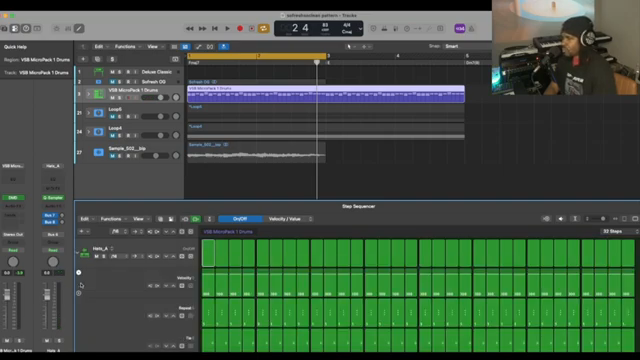 Verysickbeats Breaks Down That Organized Noize Drum Sauce
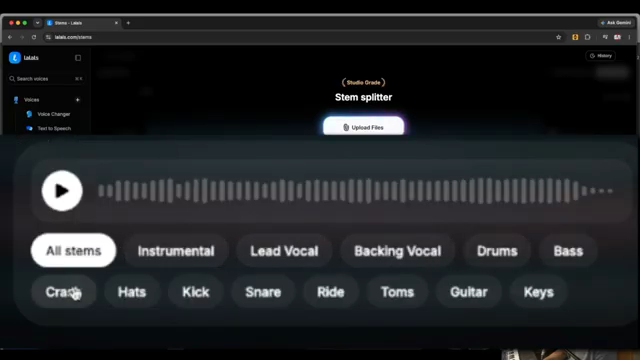 Verysickbeats Flips the Script: Vocal Stem Sorcery with Lalals
 Chris Sangster vs. Logic’s Stem-Bounce Nightmare: EasyBounce to the Rescue
 Verysickbeats: Sculpting the Boondocks—Soulful Templates for Cinematic Beats
 Verysickbeats Schools Us: Why Auto-Tune Can’t Hang With a Vocoder
 Verysickbeats Breaks Down Just Blaze’s Sample Game: Groove Lessons from a Beatmaking OG
 Chris Sangster Turns Club Chaos Into Streaming Gold – A No-Nonsense Live Mix Breakdown
 sunwarper’s Flip: No More Crate Digging—Make Your Own Heat
 Lodewijk Vos (LØ): Navigating the DAW Nebula – A Composer’s Sonic Cartography
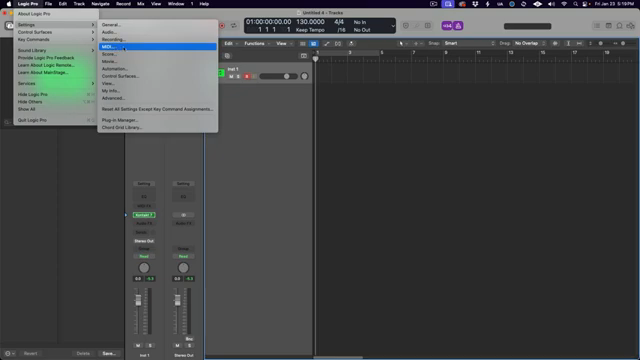 Chris Sangster’s MIDI Survival Guide: Logic Pro Troubleshooting That Actually Works
Watch on YouTube:
Latest articles
Watch on YouTube:
Visit the channel:
https://www.youtube.com/sangstersounds
https://www.youtube.com/sangstersounds
Links from sangstersounds:
FREE DOWNLOADS!: https://linktr.ee/sangstersounds
Website: https://sangstersounds.com
Instagram: https://instagram.com/sangstersounds
Sponsored links:
If you purchase via these links, we may earn a small commission – at no extra cost to you. The link opens an Amazon keyword search, and results may vary depending on availability.
Logic Pro
🔗 Check price on Amazon
🔗 Check price on Amazon