Right, listen up Logic heads. Chris Sangster dives into the underbelly of Logic Pro and drags out those hidden Group Settings you always ignore. If you thought grouping tracks was just for neat freaks, think again—Sangster shows how these tweaks can turn your mix workflow from a donkey cart into a bullet train. Expect fast moves, no fluff, and the kind of practical tricks that’ll save you hours and possibly your sanity. No hand-holding here—just pure, actionable DAW power.
25. October 2026
SPARKY
Chris Sangster Unmasks Logic Pro’s Secret Weapon: Group Settings That Actually Matter
Group Settings: Logic’s Best-Kept Secret
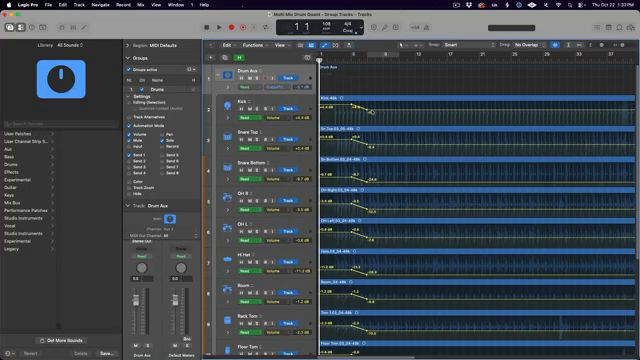
Chris Sangster kicks things off by shining a harsh LED on the Group Settings menu in Logic Pro—a corner of the DAW most users run past like it’s haunted. He’s not wrong: these controls are hidden behind a setup step most folks never bother with, but once you see what they unlock, you’ll wonder why you wasted all that time clicking tracks one by one.
He sets the scene for why groups matter, especially if you’re the kind of operator juggling multi-mic drum takes or layered instruments. The point isn’t just about being tidy—it’s efficiency that borders on black magic. If you’re tired of the endless copy-paste-edit marathon, this is where you finally get your life back.
"The Group Settings menu only appears after you've created a track group, so some of these useful options are easy to overlook."
© Screenshot/Quote: Sangstersounds (YouTube)
Linking Up: Channel Strip Mayhem and Mass Editing
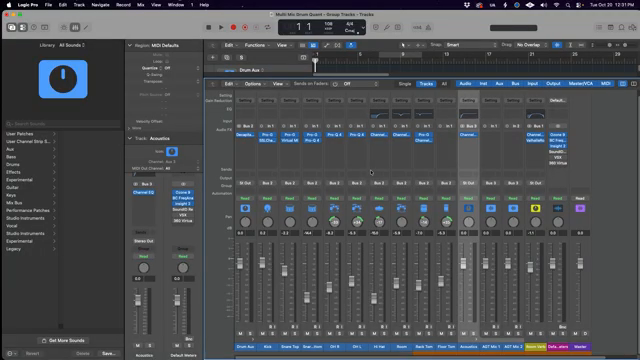
"You can link channel strip parameters across multiple tracks."
© Screenshot/Quote: Sangstersounds (YouTube)
Now for the fun bit: Sangster shows off how to link channel strip parameters across tracks. Think of it as turning your DAW into a proper control room where one move rules them all. No more double-dipping into every channel to tweak EQ or pan—just link, twist, and watch the dominoes fall.
He also walks through simultaneous track editing, which is a life-saver when you’re knee-deep in backing vocals or multi-tracked synths. It’s not just a time-saver; it’s a sanity-preserver. If you’ve ever felt trapped in menu hell, this is your emergency exit.
Automation and Comping: Group Therapy
Sangster doesn’t just stop at theory—he gets hands-on with real-world sessions. Automating across grouped tracks means you can ride those faders like you’re mixing on rails, not rollerblades. No more wonky mismatches between overheads and close mics—everything moves as one tight unit.
And when comping multi-miked sources, he shows how Group Settings keep everything locked in sync. It’s like having a DAW bouncer making sure no track sneaks out of line. If you want to see the magic for yourself, you’ll have to check the video—words don’t do the workflow justice.
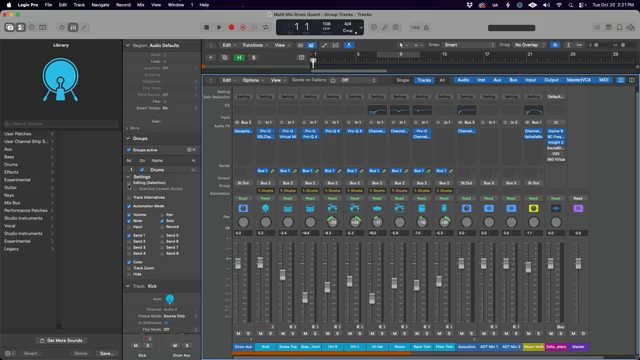
"Comp multi-miked recordings while keeping tracks in sync."
© Screenshot/Quote: Sangstersounds (YouTube)
Flex Time: Tighten Up Without Breaking a Sweat
"Quantize multi-miked performances using Flex Time."
© Screenshot/Quote: Sangstersounds (YouTube)
Next up, Sangster tackles Flex Time within grouped tracks. Quantizing multi-miked performances is usually a recipe for phase carnage—unless you know the Group Settings trick. He shows how to snap everything into place without ending up with a digital mess.
This is where Logic’s brains and brawn combine. If you’re aiming for tight, modern mixes without losing the feel, this is the shortcut you need. And yes, you’ll want to see his workflow in motion, because describing Flex Time in text is like explaining a rave with PowerPoint slides.
Why You’ll Never Ignore Groups Again
By the end, even the most stubborn DAW cynic will admit: Group Settings aren’t just for neat freaks, they’re the secret sauce for pro-level Logic mixes. Sangster’s walkthrough makes it clear—ignore these at your own peril. Whether you’re tracking drums, stacking synths, or just want to claw back hours of your life, this video is mandatory viewing.
This article is also available in German. Read it here: https://synthmagazin.at/chris-sangster-deckt-logic-pros-geheime-waffe-auf-gruppeneinstellungen-die-wirklich-zaehlen/
Watch on YouTube:
Latest articles
Watch on YouTube:
Visit the channel:
https://www.youtube.com/sangstersounds
https://www.youtube.com/sangstersounds
Links from sangstersounds:
FREE DOWNLOADS!: https://linktr.ee/sangstersounds
Website: https://sangstersounds.com
Instagram: https://instagram.com/sangstersounds