Arturia’s official walkthrough puts the KeyLab mk3 MIDI controller front and center as a tightly integrated companion for Ableton Live on Mac OS. In this video, Lena demonstrates how the KeyLab mk3’s dedicated DAW mapping transforms everything from clip launching to mixer tweaks into a tactile, performance-ready workflow. The focus is on how Arturia’s hardware architecture—encoders, faders, pads, and contextual buttons—maps directly onto Ableton’s session and arrangement views, promising a fluid studio and live experience. For those curious about real-world controller ergonomics and digital workflow design, this is a deep dive into what Arturia’s latest controller brings to the Ableton table.
28. August 2024
LYRA
Arturia KeyLab mk3: Seamless Ableton Live Integration, Workflow Unleashed
Plug, Play, Produce: KeyLab mk3 Meets Ableton Live
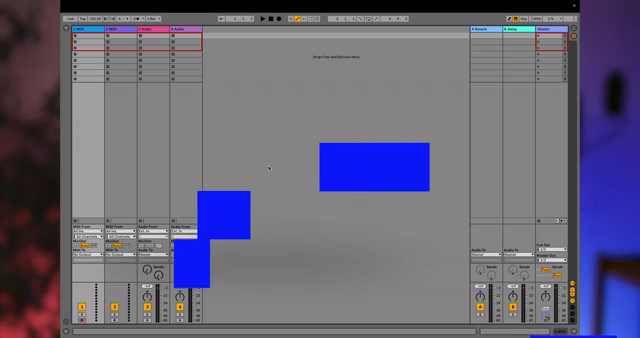
Arturia positions the KeyLab mk3 as a purpose-built MIDI controller for Ableton Live, engineered to deliver a consistent and intuitive workflow across both session and arrangement views. The video opens with Lena emphasizing how the controller’s layout and feature set remain familiar no matter which view you’re working in, with only the browsing arrow orientation shifting between left-right and up-down. This subtle but important design choice keeps navigation predictable for users who regularly switch between creative and linear workflows.
Integration is straightforward: connect the KeyLab mk3, select the DAW program via the PROG button, and Ableton Live should automatically detect the controller. If not, Lena walks through the necessary MIDI preferences, ensuring the correct control surface and port assignments. The process is tailored for Mac OS, but Arturia notes a small caveat for Windows users regarding MIDI port settings. This plug-and-play approach, combined with a clear setup path, underlines Arturia’s focus on making hybrid hardware-software rigs accessible for both studio and stage.
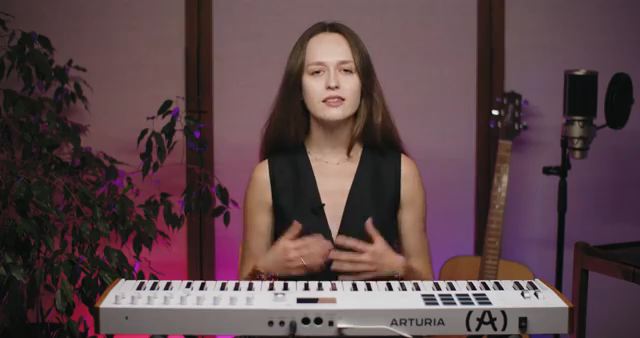
"The Keylab MK3 is designed to work seamlessly with Ableton Live, offering a consistent layout and feature set across both session and arrangement views."
© Screenshot/Quote: Arturiaofficial (YouTube)
Encoders, Commands, and Context: The Control Surface Unpacked
"The main encoder on your Keylab MK3 is a powerful tool for managing your tracks."
© Screenshot/Quote: Arturiaofficial (YouTube)
The main encoder is the centerpiece of the KeyLab mk3’s navigation, allowing users to scroll through tracks with the current track name displayed prominently on the controller’s screen. This tactile browsing experience is designed to keep your attention on the music, not the mouse. DAW command buttons flank the encoder, offering direct access to essential functions: SAVE for capturing ideas, QUANTIZE for timing perfection, and UNDO/REDO for quick creative reversals.
Contextual buttons add another layer of workflow flexibility. Buttons 1 and 2 toggle between device and mixer control, letting you jump from tweaking synth parameters to balancing your mix. Buttons 3 and 4 handle scene navigation, while buttons 5–8 provide hands-on control of mute, solo, arm, and scene triggering or stopping. The visual feedback—such as grayed-out buttons when no scenes remain—keeps the user interface transparent and reduces the risk of workflow interruptions. Arturia’s approach here is to minimize menu-diving and maximize direct access, a philosophy that digital performers and producers will appreciate.
Faders, Knobs, and Real-Time Feedback: Deep Device and Mixer Control
Faders and knobs on the KeyLab mk3 are mapped for comprehensive device and mixer control, with a clear division between modes. In device control mode, knobs 1–8 adjust the first eight parameters of the selected device, while faders 1–8 manage the next eight. This split allows for nuanced, two-handed sound design or effect manipulation, and knob 9 and fader 9 are always reserved for pan and volume of the selected track.
Switching to mixer control mode, the first eight knobs and faders take over pan and volume duties for the first eight tracks (or an offset group), while the ninth pair stays focused on the currently selected track. Real-time feedback on the controller’s display shows parameter names, positions, and values as you tweak, ensuring you’re never guessing what you’re adjusting. This architecture is designed for immediacy and clarity, supporting both detailed studio work and fast-paced live sets. The pads, meanwhile, are dynamically mapped to Ableton clips, lighting up in real time to reflect clip status, pending actions, and track arming—making the controller’s surface a living extension of your session.
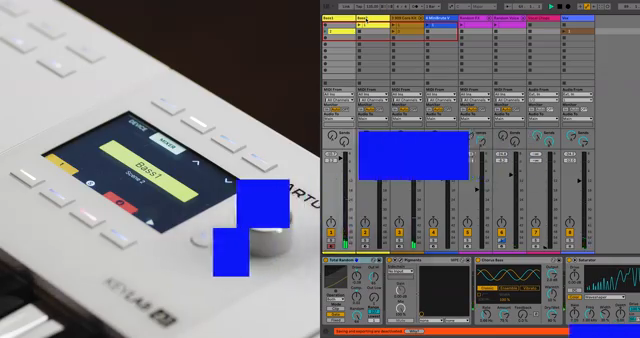
"The faders and knobs on the Keylab MK3 offer comprehensive control over both device parameters and mixer settings."
© Screenshot/Quote: Arturiaofficial (YouTube)
Session vs. Arrangement: Navigating Creative Workflows
"Whether you're working in session or arrangement view, this video will show you how to harness the full potential of your Keylab MK3."
© Screenshot/Quote: Arturiaofficial (YouTube)
Lena’s demonstrations highlight how the KeyLab mk3 adapts to both session and arrangement views in Ableton Live, supporting a wide range of creative workflows. The browsing arrows change orientation to match the view, but the core navigation and control concepts remain consistent. Whether launching clips, recording ideas, or mixing on the fly, the controller’s layout ensures that switching between improvisational and linear production styles is frictionless. This flexibility is a key part of Arturia’s pitch: the KeyLab mk3 isn’t just a static controller, but a workflow chameleon designed to keep up with the evolving demands of modern music production.
This article is also available in German. Read it here: https://synthmagazin.at/arturia-keylab-mk3-nahtlose-ableton-live-integration-workflow-entfesselt/
Watch on YouTube:
Latest articles
Watch on YouTube:
Visit the channel:
https://www.youtube.com/ArturiaOfficial
https://www.youtube.com/ArturiaOfficial
Links from ArturiaOfficial:
website: https://www.arturia.com
instagram: https://instagram.com/arturia_official
twitter: https://twitter.com/ArturiaOfficial
soundcloud: https://soundcloud.com/arturia-official/albums
Sponsored links:
If you purchase via these links, we may earn a small commission – at no extra cost to you. The link opens an Amazon keyword search, and results may vary depending on availability.
Arturia KeyLab MK3
🔗 Check price on Amazon
🔗 Check price on Amazon