Arturia’s official walkthrough puts the spotlight on the KeyLab mk3 as a DAW controller purpose-built for FL Studio integration. This video, presented by Lena, dives into how the KeyLab mk3’s automatic recognition, deep command mapping, and hands-on controls can streamline your music production workflow. From channel rack navigation to plugin management and Arturia’s own Analog Lab mode, the focus is on practical, real-world control. We break down what’s actually demonstrated—and where the workflow strengths and boundaries lie—so you can judge if this hybrid setup fits your studio or stage rig.

31. August 2024
LYRA
Arturia KeyLab mk3 Meets FL Studio: Seamless Integration for Modern Producers
A Controller Designed for Seamless FL Studio Integration
Arturia positions the KeyLab mk3 as a versatile DAW controller, engineered to deliver a frictionless experience inside FL Studio. The video opens with a clear promise: instant, deep integration that covers everything from channel rack navigation to plugin and mixer management. The focus here is on making the controller an extension of the DAW, aiming to remove the usual setup headaches and let users dive straight into music creation.
The presenter emphasizes that this is not just about basic MIDI mapping. Instead, the KeyLab mk3 is shown as a purpose-built bridge between hardware and software, designed to enhance the music production process in FL Studio. Arturia’s official approach is evident—this is about workflow optimization, not just triggering notes or automating a few parameters.

"This integration is designed to give you seamless control over your FL Studio projects, from navigating the channel rack to managing mixer tracks and plugins."
© Screenshot/Quote: Arturiaofficial (YouTube)
Automatic Recognition and Deep Navigation
"This automatic recognition means you can jump straight into your creative process without any hassle."
© Screenshot/Quote: Arturiaofficial (YouTube)
One of the headline features is the automatic recognition between KeyLab mk3 and FL Studio. Upon launching the DAW in DAW mode, the controller immediately detects the software, displaying the FL Studio icon and a confirmation message on its screen. This eliminates the need for manual setup, reducing friction for users eager to get started.
The video details the setup process, including steps for ensuring the latest FL Studio version, connecting the controller, and selecting the correct DAW program. If automatic detection fails, the workflow for manual MIDI port and controller type assignment is clearly outlined. This dual approach—plug-and-play with a fallback for manual configuration—caters to both beginners and advanced users, ensuring reliable integration in most studio environments.
Command Buttons: Workflow at Your Fingertips
The KeyLab mk3’s DAW command buttons are highlighted as essential tools for streamlining common production tasks. Dedicated buttons for Save, Quantize, and Undo are mapped to their respective FL Studio functions, enabling quick access to project management and timing correction without reaching for the mouse. This tactile approach is designed to keep users in the creative flow, minimizing interruptions.
Contextual buttons further expand the controller’s utility. Plugins 1 and 2 toggle between device and mixer control, allowing seamless transitions between sound design and mixing tasks. Buttons 3 and 4 are used for pattern browsing in the channel rack, and when a plugin GUI is open, they enable preset changes—though this is limited to stock plugins, as noted in the demonstration.
Track control is handled by buttons 5 to 8, which manage mute, solo, and record arm functions. Visual feedback via button lighting (e.g., green for solo, red for record arm) provides clear, immediate status updates. This section of the workflow is all about reducing menu-diving and mouse clicks, letting users focus on the music rather than the interface.
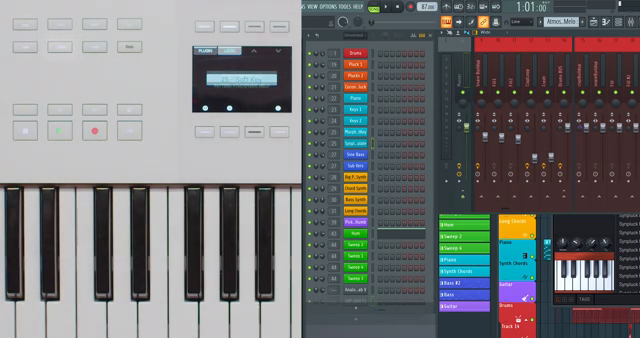
"The Undo button allows you to easily reverse your last action, giving you the flexibility to experiment without fear of losing your work."
© Screenshot/Quote: Arturiaofficial (YouTube)
Hands-On Mixing: Faders and Knobs in Action
The video moves on to demonstrate how the KeyLab mk3’s faders and knobs provide direct, tactile control over both device parameters and mixer channels. In channel rack mode, the first eight knobs and faders are mapped to device parameters, while knob 9 and fader 9 are dedicated to pan and volume of the selected track. This mapping is designed to offer immediate access to the most relevant controls for sound shaping and balancing.
Switching to mixer control mode, the same physical controls are reassigned: knobs 1–8 manage pan for the first eight mixer tracks, and faders 1–8 control their volumes. The ninth knob and fader continue to govern pan and volume for the currently selected track. For larger projects, the mixer button and main encoder can be used together to offset the controlled tracks, with a pop-up display providing visual feedback. This approach is particularly useful for managing complex mixes without losing track of which channels are under control.
Arturia Mode: Deep Integration with Analog Lab and Beyond
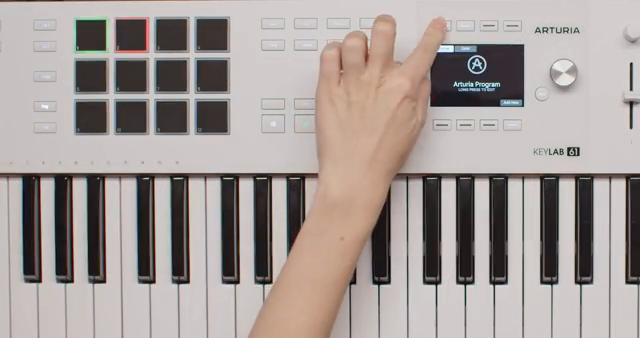
"When Analog Lab is selected, you can manage the plugin as you would do in standalone - navigation, action, and FX."
© Screenshot/Quote: Arturiaofficial (YouTube)
Arturia’s integration doesn’t stop at DAW control. The video highlights a dedicated Arturia mode, which enables deep control over Analog Lab VSTs within FL Studio. Entering this mode is straightforward—either by pressing the main encoder on a track with an Arturia plugin or by holding the Prog and Arturia buttons together. This provides a focused environment for managing Analog Lab’s navigation, actions, and effects directly from the KeyLab mk3.
The workflow here is clearly designed for users who rely on Arturia’s software instruments, offering a level of hands-on control that mirrors the standalone experience. This mode reinforces the KeyLab mk3’s role as a hybrid controller, bridging DAW and plugin environments for a more unified creative process.
This article is also available in German. Read it here: https://synthmagazin.at/arturia-keylab-mk3-trifft-fl-studio-nahtlose-integration-fuer-moderne-produzenten/
Watch on YouTube:
Latest articles
Watch on YouTube:
Visit the channel:
https://www.youtube.com/ArturiaOfficial
https://www.youtube.com/ArturiaOfficial
Links from ArturiaOfficial:
website: https://www.arturia.com
instagram: https://instagram.com/arturia_official
twitter: https://twitter.com/ArturiaOfficial
soundcloud: https://soundcloud.com/arturia-official/albums
Sponsored links:
If you purchase via these links, we may earn a small commission – at no extra cost to you. The link opens an Amazon keyword search, and results may vary depending on availability.
Arturia Analog Lab
🔗 Check price on Amazon
🔗 Check price on Amazon
Arturia KeyLab MK3
🔗 Check price on Amazon
🔗 Check price on Amazon
FL Studio
🔗 Check price on Amazon
🔗 Check price on Amazon